Calibre Web Automated with Docker and Kobo
540 words, est. 3 minI have a Kobo Libra 2 and I love it, but one hassle has been to load books onto it. I do buy some books on Kobo Store, but most often I buy the book physically and then copy a DRM-free version to my ebook-reader. To streamline that process, I have wanted to setup Calibre in order to facilitate the transfer of the .epub-file to my Kobo. I have a server but currently not a desktop computer, so Calibre is not a good option, since it has to run in a GUI.
I had heard of Calibre Web, but to my understanding it was a bit of a hack – you setup Calibre through a VNC server, etc. Not too appealing. But then I found out that there is a Docker image for Calibre Web Automated, and that it is quite easy to setup and didn’t require a GUI environment nor VNC.
Setting up Calibre Web Automated with Docker compose
services:
  calibre-web-automated:
    image: crocodilestick/calibre-web-automated:latest
    container_name: calibre-web-automated
    environment:
      - TZ=UTC
    volumes:
      - ./config:/config
      - ./ingest:/cwa-book-ingest
      - ./books:/calibre-library
    ports:
      # Change the first number to change the port you want to access the Web UI, not the second
      - 8083:8083
    restart: always
    stop_signal: SIGINT
    stop_grace_period: 15s
    healthcheck:
        test: curl --fail -m 5 http://10.1.1.XXX:8083/login || exit 1
        interval: 60s
        timeout: 10s
        retries: 2
You probably know what to do with the snippet above, but in case you don’t: save it to a file called docker-compose.yml and run docker-compose up -d in the same directory. That will download the image and start the container.
This compose file will setup Calibre Web Automated for you, including a healthcheck (edit the IP to your server’s IP) that makes sure Calibre is restarted if it hangs (which it unfortunately does some times). The volumes are setup so that you can easily ingest books to the server, and the books will be stored in the books-folder. The configuration is stored in the config-folder. If you run in to permission issues, you might have to change the owner of the folders to the user running the Docker container.
You can access the web UI on http://10.1.1.XXX:8083 where you can setup your Calibre Web Automated. Default login is admin with password admin. I don’t use the ingest feature, but upload through the web UI instead – a feature you have to enable in the settings under Edit Basic Configuration. There you can enable Kobo sync as well.
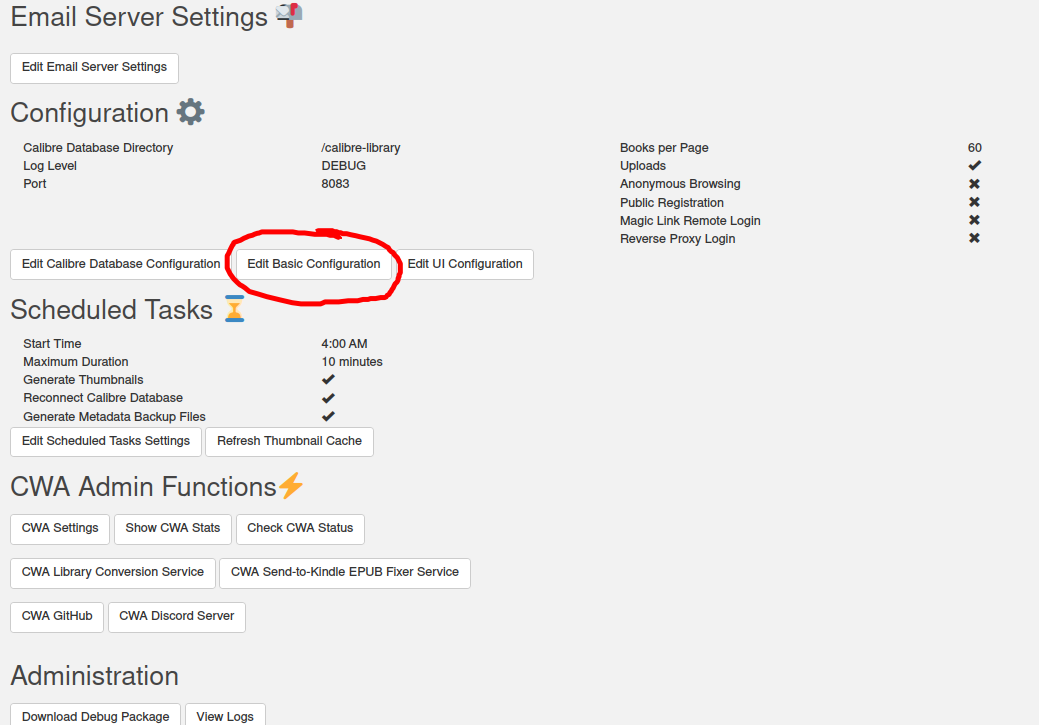
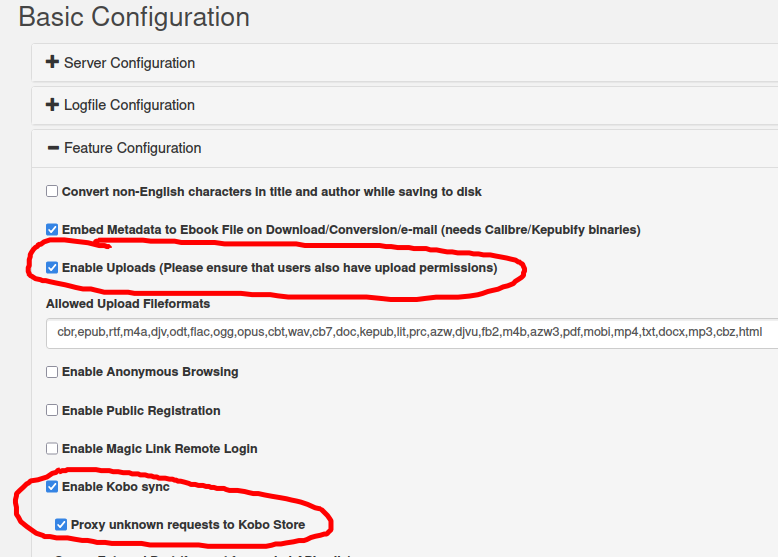
Once you have enabled Kobo sync and uploaded a book, you should have an option on your profile (top right) to sync with your Kobo, under Kobo Sync Token. Click Create/View and you will get a URL which you copy and paste on your Kobo.
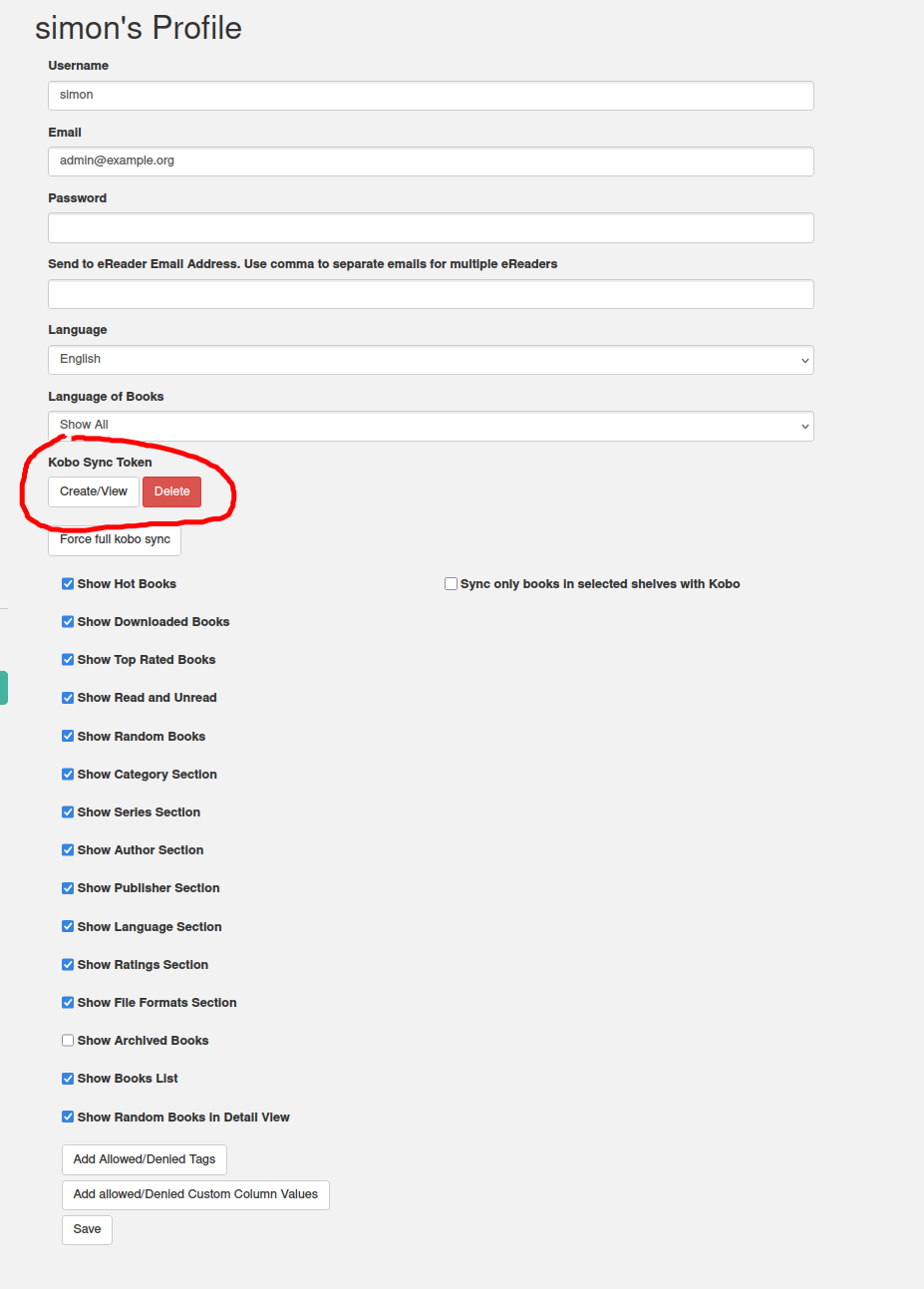
Connect your Kobo via USB and browse to .kobo/Kobo/Kobo eReader.conf, then find and replace the value of api_endpoint to the URL you got from Calibre Web Automated. Eject your Kobo and you should be able to sync your books from Calibre Web Automated to your Kobo.
I had to reset my Kobo to factory settings to get it to work (it got confused by the new library), but now it works like a charm. I can now buy books physically and upload them to my Kobo with ease.